
For setting up your school's account for a new academic year, or adding teachers in bulk, check out this guide.
Here's a quick tutorial on how to seamlessly onboard new teachers into Wellio:
-
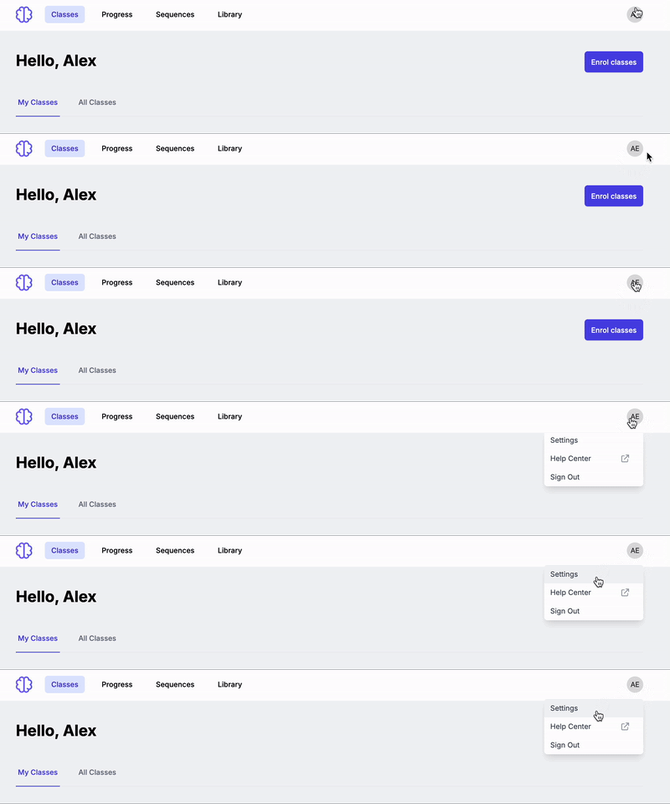
Log in to your Wellio admin account and click your initials in the top right-hand corner:
-
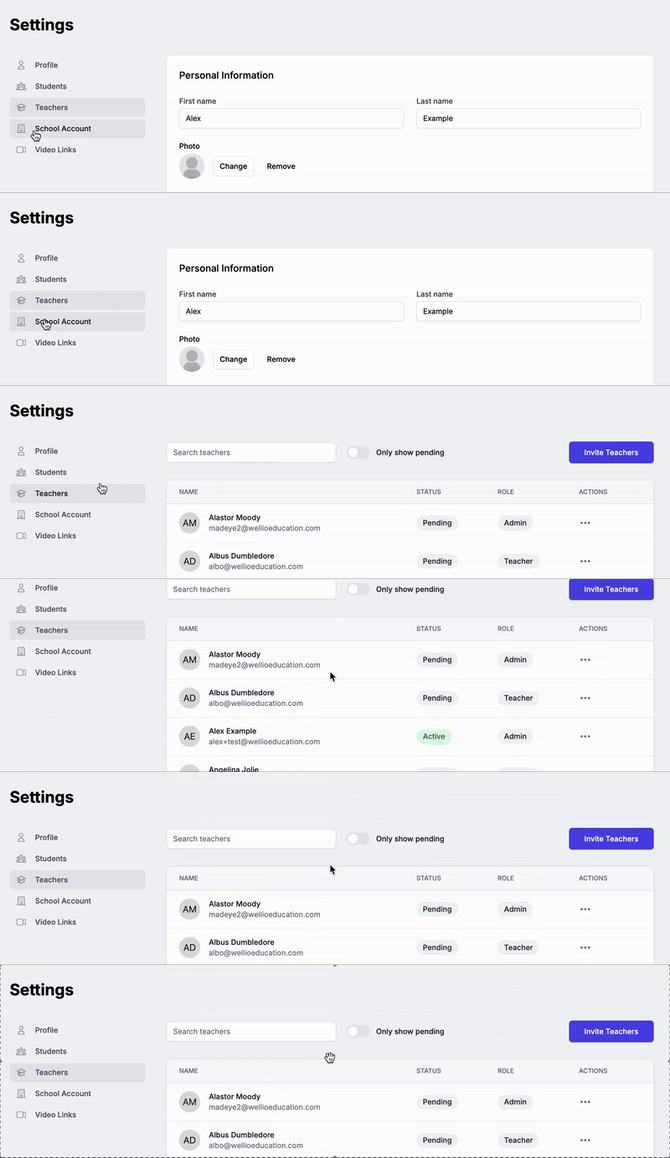
Click the Teachers tab in the side panel on your left. You can use the search on the Teachers screen to check existing teacher access to Wellio.
-
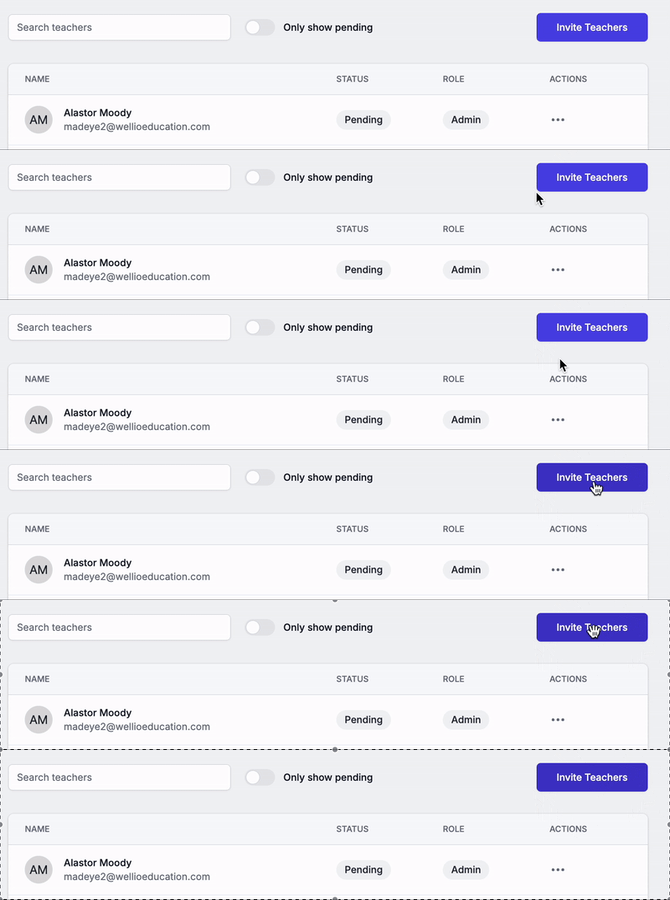
Click the purple Invite Teachers button:
-
Fill out the teacher's details.
If the teacher requires admin permissions (like making changes to sequencing, adding other teachers, and viewing the Progress Dashboard), then choose the admin role. -
Use the Add another button to set up multiple new teachers at once.
-gif.gif?width=670&height=290&name=3-ezgif-com-video-to-gif-converter%20(3)-gif.gif)
-
Click Email invitation now...
-
You can now add the teacher to their relevant class (or classes) by following these steps!
Invited a teacher with the wrong email address?
You can't edit another teacher's email address, but you can replace the invite:
- On the Teachers tab, search for the teacher's name.
- Click the ⋮ menu next to them and select Delete account. Confirm when prompted.
- Click Invite Teachers and enter the correct email address.
- Click Email invitation now...
The teacher will get a new invite from support@wellioeducation.com. Deleting the old account also removes it from any classes, so add the teacher to their classes again using these steps.
Has the teacher already activated their account?
They can change their own email address instead - see Changing your personal details.