
You can rename a class, change its year level or switch its sequence at any time. You don't need to re-upload your enrolment spreadsheet - everything is done in the same Edit class details window.
How to rename a class or change its year level
- Navigate to your Classes page from the sidebar and click into the class.
- Click Edit (the pencil icon) at the top of the class page.
- In the Edit class details window, update the Class name and/or Year levels.
- Click Save.
How to change the sequence assigned to a class
- Navigate to your Classes page from the sidebar.
- Click into the class you'd like to update, then click Edit (the pencil icon) on the class you'd like to updateat the top of the class page.

- In the Edit class details window, select a new sequence from the Sequence dropdown.
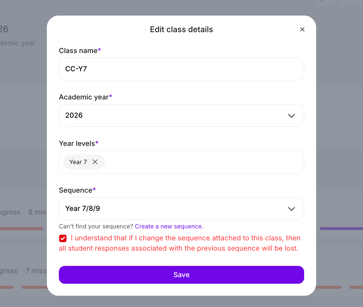
- Tick the checkbox to confirm you understand the data impact.
- Click Save.
🔔 Changing mid-term? Activity dashboards, completion tracking, and insights will reset to reflect the new sequence. Previous progress won't carry over. We recommend exporting any reports you need before making the change.
Why can't I see the sequence I want?
- Not published yet - ask your school admin to publish it for the current academic year.
- Wrong academic year - check the academic year for the sequence matches the year you need.
- Year level mismatch - sequences are filtered by your school's entitled year levels.
Can I switch back?
Yes, at any time - but the same data reset applies each time you switch.