
If your school uses Magic Links, you no longer need to remember a password to sign in to Wellio. Instead, you'll be sent a 6-digit code (a Magic Link) to your school email address each time you need to log in.
This applies to admins, teachers, and students at schools that have Magic Links enabled. If your school is using SSO you'll continue to sign in with your school portal details as usual.
10-Second Tutorial:
How to sign in with a Magic Link
- Go to the Wellio website and click Sign in.
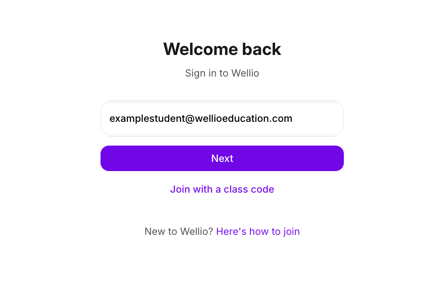
- Enter your school email address and click Next:
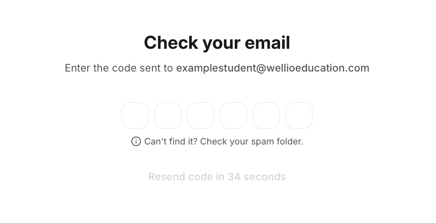
- You'll see a screen asking you to check your email. Open your inbox and look for an email from Wellio – this is your Magic Link:
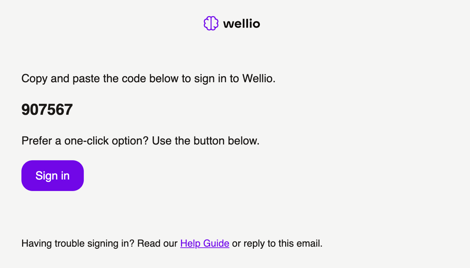
- From here, you have two options:
- Click the sign-in link in the email. This signs you straight in. Use this when you're checking email on the same device you want to use Wellio on.
-
- Enter the 6-digit code. Copy the code from the email and type or paste it into the sign-in screen in your browser. Use this when your email is on a different device – for example, you're on a classroom desktop but only have your email on your phone.
- Enter the 6-digit code. Copy the code from the email and type or paste it into the sign-in screen in your browser. Use this when your email is on a different device – for example, you're on a classroom desktop but only have your email on your phone.
- Once you've entered the code or clicked the button, you'll be signed in.
❗️Important: Your Magic Link and 6-digit code are single-use and expire 20 minutes after they're sent. If yours expires, just request a new one from the sign-in screen.
How often will I need to do this?
As long as you're using Wellio regularly, you won't need to request a new Magic Link.
You will need to sign in again with a new code if:
- You haven't been active on the platform for a while
- You're signing in on a new device
- You've cleared your browser cookies
- You've signed out manually
For new users activating their account
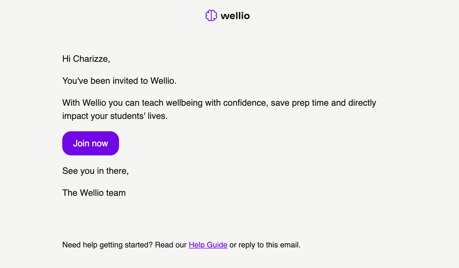
If this is your first time signing in to Wellio, you'll still need to activate your account via the activation email from us.
If you try to sign in before activating your account, we'll send the activation email again and prompt you to check your inbox. Once you click Join Now in the activation email, you'll be signed in straight away.
For step-by-step instructions on activating your account for the first time, see How to activate your teacher account or How to set students up on Wellio.
What if my school is using Single Sign-On (SSO)?
If your school uses SSO with Google or Microsoft, you'll continue to sign in using your school portal details as usual. Magic Links only apply to schools without SSO set up.