---
title: Interactive components of Wellio lessons
description: Learn how we use technology and different types of questions in Wellio and to use them to create meaningful conversation in class.
---
[Skip to content](https://help.wellioeducation.com/interactive-questions-in-wellio#main-content)
English
Show submenu for translations
[](https://www.wellioeducation.com)
Open main navigation
Close main navigation
- English
Show submenu for translations
- [Sign In](https://app.wellioeducation.com/)
[Sign In](https://app.wellioeducation.com/)
Hello. How can we help you?
- There are no suggestions because the search field is empty.
1. [Help Centre](https://help.wellioeducation.com/?hsLang=en)
2. [Lesson Tools & Delivery](https://help.wellioeducation.com/lesson-tools-delivery?hsLang=en)
3. [Delivering a lesson](https://help.wellioeducation.com/lesson-tools-delivery?hsLang=en#delivering-a-lesson)
# Interactive components of Wellio lessons
## Learn how we use technology and different types of questions in Wellio and to use them to create meaningful conversation in class.
We see engaging students as especially important in Wellbeing lessons. Interactive questions help students stay involved, grasp the skills they're learning about, and leave with meaningful insights and practical tools to try out.
These interactive elements also provide valuable opportunities for immediate feedback and assessment of comprehension. By actively participating in these interactive activities, students can apply and reinforce the knowledge and skills they are learning in real time.
We have embedded the following interactive elements into our lessons:
- [Quizzes](https://help.wellioeducation.com/interactive-questions-in-wellio#quizzes)
- [Open Responses](https://help.wellioeducation.com/interactive-questions-in-wellio#Openresponses)
- [Polls](https://help.wellioeducation.com/interactive-questions-in-wellio#polls)
- [Sparks](https://help.wellioeducation.com/interactive-questions-in-wellio#Sparks)
- [XP Points](https://help.wellioeducation.com/interactive-questions-in-wellio#XPPoints)
Want to change these questions? School admins can edit polls, quizzes, open responses and Sparks in the lesson editor. See [How to edit a lesson](https://help.wellioeducation.com/how-to-edit-a-lesson?hsLang=en). Teachers should ask their school's Wellio admin to make edits.
If you have a Wellio admin account, you can review students' responses across the school. Check out this article for detailed instructions on *[How to use the progress dashboard](https://help.wellioeducation.com/using-the-progress-dashboard?hsLang=en)* to review their answers thoroughly.
These interactive features were primarily designed for students who have access to their own electronic devices. However, if you are conducting the lesson in Device-Free Mode, these interactive features serve as excellent prompts to kickstart classroom discussions.
### Unlocking a question
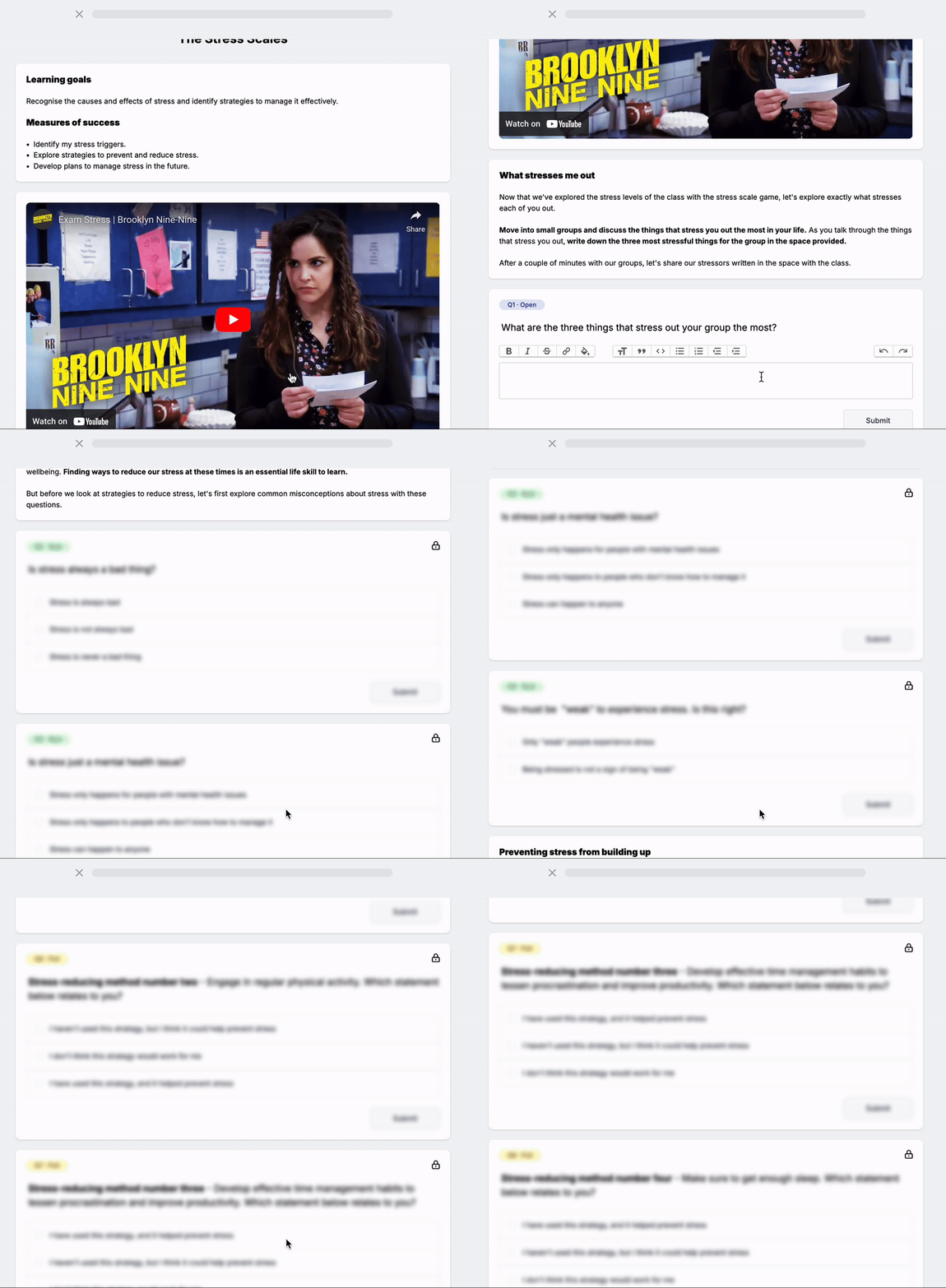
The questions on the students screens will remain hidden until you click **Unlock questions** in the toolbar above the questions.
When students click into a lesson from their account, they can't access all questions and activities right away. Instead, they wait until the teacher has unlocked a question before completing their response.
We know that many of the benefits students gain from Wellio lessons come from discussion and interaction with their teacher and peers. This feature helps students stay present, preventing them from racing through the content and disengaging with what's happening around them in the room.
### Sharing student responses
During a Wellio lesson, teachers can click **Show answers** to showcase real, anonymous student responses from their class from within their presentation. These responses are collected as students engage with questions on their devices, and can serve as a jumping-off point for further discussion. Click **Hide answers** to hide them again. The slide remembers your choice for that class, even when new answers come in or the page reloads.
Student responses are anonymous in this view to encourage greater openness, honesty and vulnerability in their contributions. Teachers can still use [Review mode](https://help.wellioeducation.com/using-review-mode?hsLang=en) to see responses linked with student names, for any further follow up required.
If you are delivering the lesson in Device Free Mode, click **Show answers**. Polls show the average result across Wellio schools, and open questions and tables show the example answer.
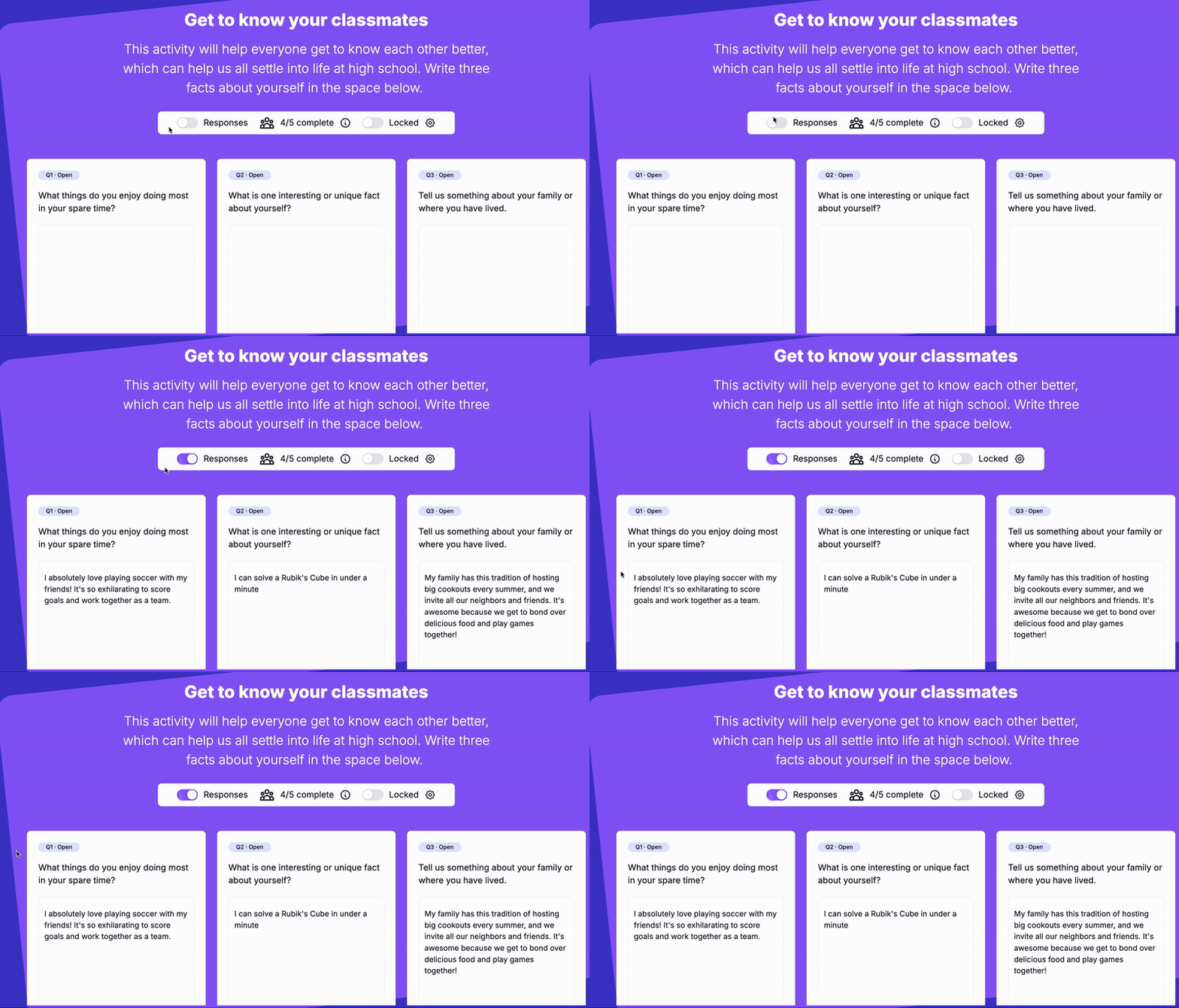
**Teaching an older lesson?** Lessons built before slide decks still present the way they did, so you may still see the lock icon and **Responses** toggle.
#### **Quizzes**
Quiz questions are used throughout Wellio lessons to gauge prior knowledge or sense-check understanding after discussion, encouraging students to actively reflect and engage with the topic at hand.
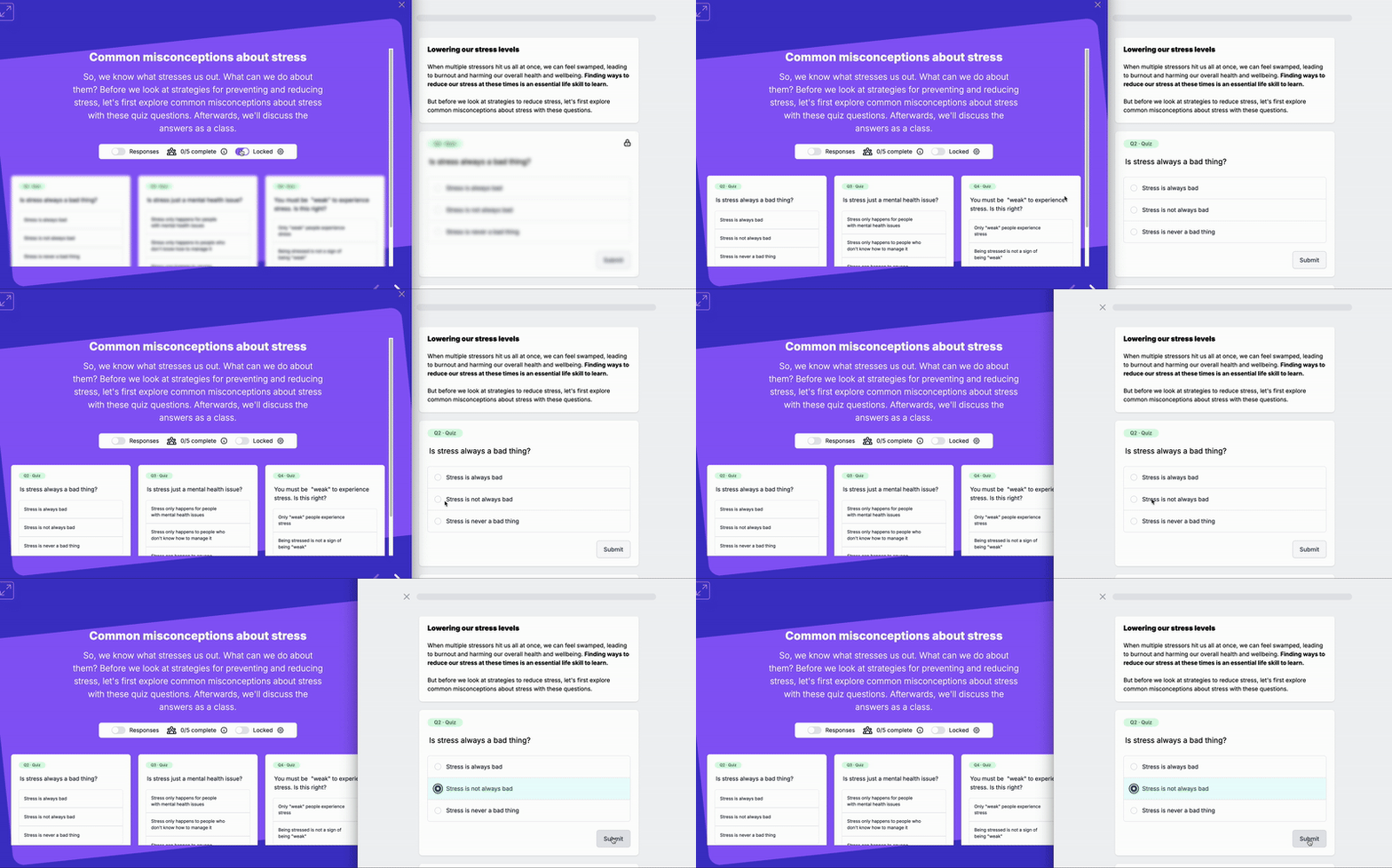
Using their own device, the students choose an option that will display anonymously on your presentation. When you click **Show answers**, the correct answer is highlighted, with a count of how many students picked each option. No names are shown on the board.
In the video demonstration below, the screen on the left shows the teacher's presentation, while the screen on the right displays the students' individual devices.
Observe how the Quiz is revealed when you unlock it by clicking **Unlock questions**.
#### Open Responses
Open response questions prompt students to reflect on their opinions and experiences and share their unique perspectives on the topic at hand.
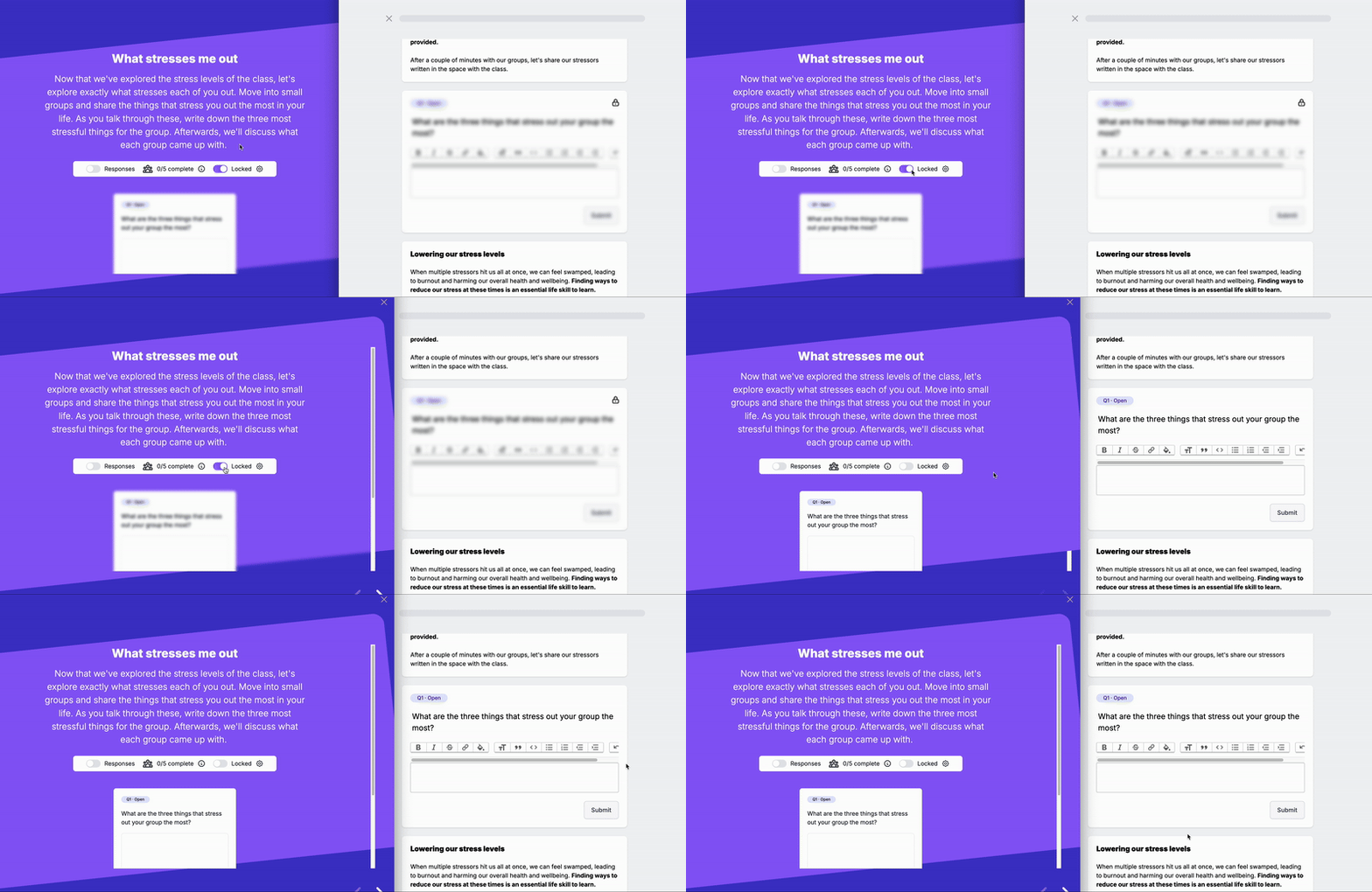
In the video demonstration, the screen on the left shows the teacher's presentation, while the screen on the right displays the students' individual devices.
Observe how the Open question is revealed when you unlock it by clicking **Unlock questions**. Once answers are shown, step through them one at a time with the arrows, or pick one from the list. Long answers scroll inside the card.
#### **Polls**
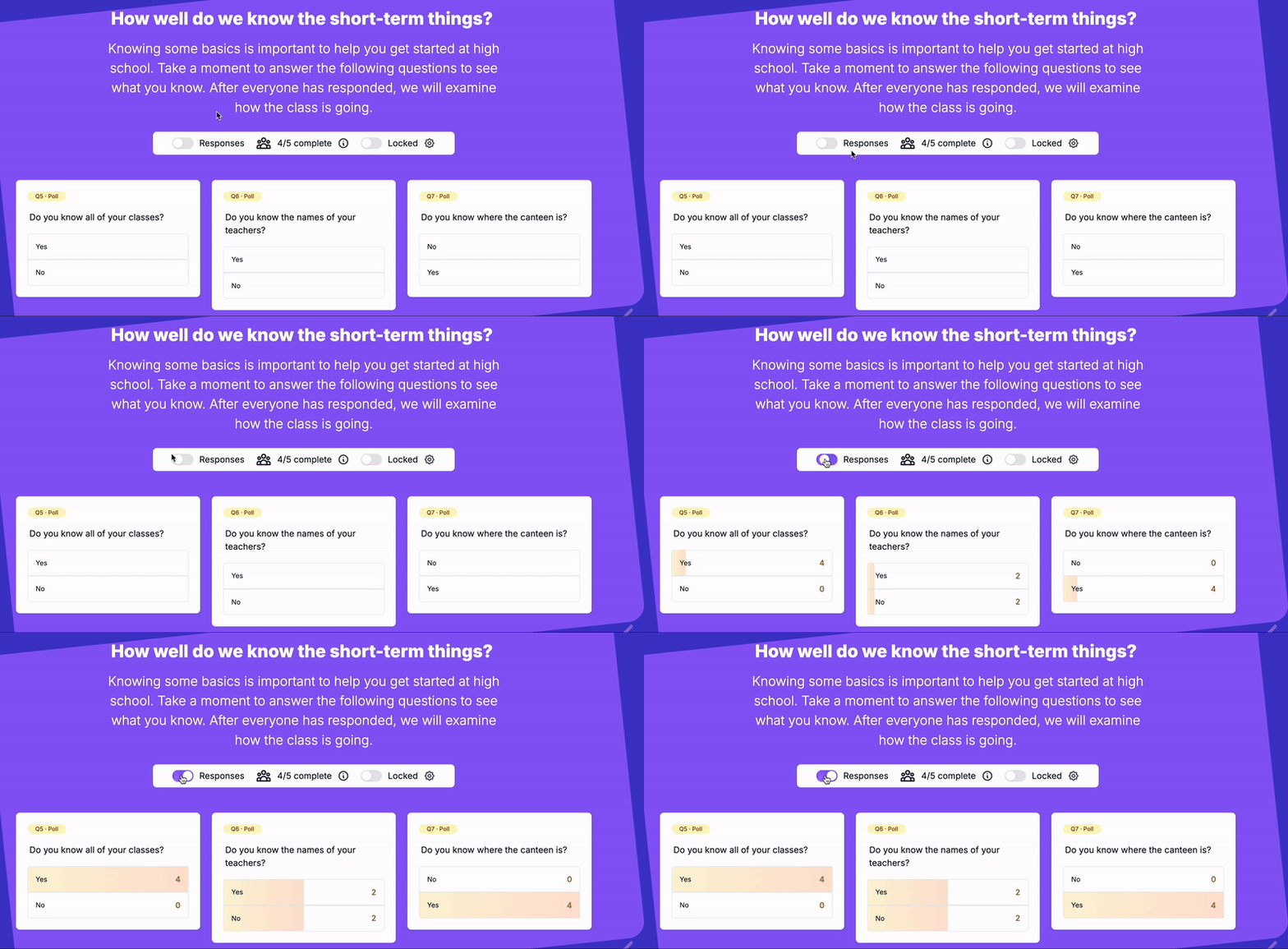
Poll questions make it easy to quickly gauge the opinion of students across the class, as a jumping-off point for discussion. Polls don't have a right or wrong answer.
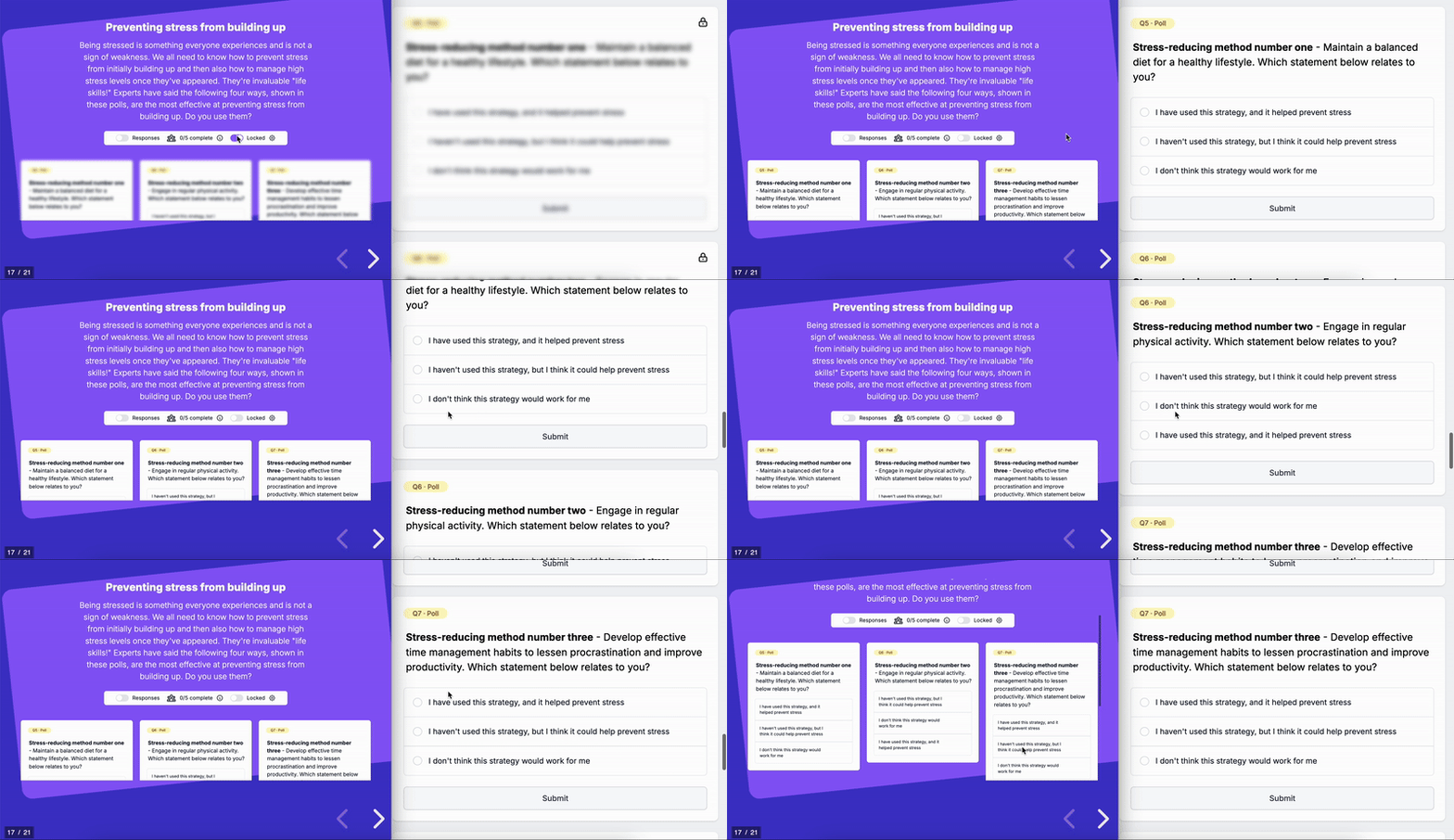
As the teacher, you have the option to anonymously share your class's responses to the poll question on your screen by clicking **Show answers**. You'll see a count for each option. This can provide valuable insights for both you and your students. It can be beneficial for students to see that they are often not alone in their thinking, creating a supportive and positive learning environment.
#### Sparks
A **Spark** is a fast-paced, trivia-style quiz game. It's a fun and competitive way to test students' knowledge of the lesson content, either before learning or towards the end of the lesson. Students get more points for answering correctly *and* quickly, and climb the scoreboard as they go.
Student responses to Sparks are not included in the progress reporting for teachers or admins.
**How to start a Spark**
1. Click ***Unlock Spark*** on the Spark slide.
2. Students click ***Join Spark*** on their own device. You'll see a count of how many students have joined.
3. Once everyone in today's class has joined, click ***I'm sure all the students joined, start the quiz!*** Students can't join once the Spark is underway, so wait for everyone first.
4. After a short countdown, each question appears on its own for 5 seconds so students can read it.
5. The four answer options then appear. Students have 30 seconds to choose one on their own device, with the question displayed at the top. The timer ends early if everyone has answered.
6. Once a student clicks an answer, it's submitted and can't be changed.
7. Students can earn [XP Points](https://help.wellioeducation.com/interactive-questions-in-wellio#XPPoints) by answering questions correctly.
8. The results for that question appear on your screen. Click ***Next*** to see the scoreboard, then ***Next*** again for the following question.
9. After the last question, click ***Show results*** to reveal the Final Scoreboard.
The video demonstration impersonates the teacher's screen on the left and a student's screen on the right. Providing a visual representation of how the interactive Spark feature works in action.
**Restarting a Spark**
After unlocking a Spark, you can restart it from the menu in the top-left corner of the Spark slide. Click ***Restart Spark***, then confirm.
Restarting takes you back to the start screen and sends students back to ***Join Spark***, so everyone can begin again and submit new answers. **Restarting deletes all students' progress and answers for that Spark**, so only use it when you want a fresh start.
Restarting is also how latecomers can join: if a student missed the start, they'll need you to restart the Spark.
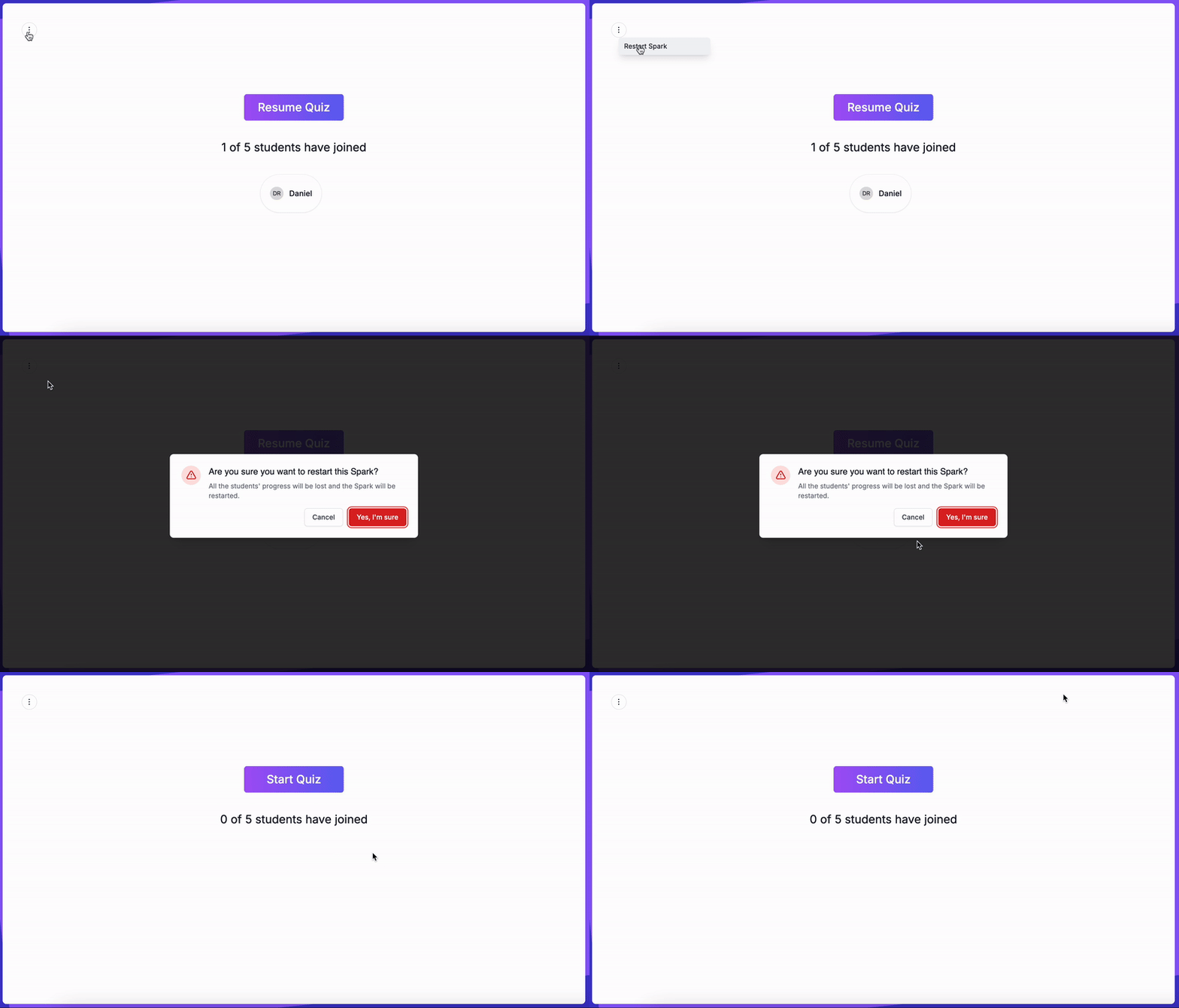
The video demonstration impersonates the teacher's screen on the left and a student's screen on the right. Providing a visual representation of how the interactive Spark feature works in action.
**Sparks automatically save the students responses**
The platform automatically saves your students' progress during the Spark activity. This means that if a session is interrupted or if you need to refresh the page, you will find a ***Resume Quiz*** button that will take you right back to where you left off, without losing any of the progress made. This feature ensures smooth continuity and provides flexibility in managing classroom activities.
**Spark not loading?** Sparks update live on everyone's screen. Some school networks block the connection that makes this work. You might notice:
- You click **Unlock Spark** and nothing happens, or the Spark stays locked on students' devices.
- Students have clicked **Join Spark**, but they don't appear on your screen.
- Students see **You're in!**, but nothing changes after you start the quiz.
If this happens, skip the Spark for now and carry on with your lesson. Refreshing won't get a Spark running.
**For IT teams:** allow this address in your web filter and firewall, for both staff and students: `wss://app.wellioeducation.com/cable`
For step-by-step instructions on checking the connection, see [Why isn't my Spark loading?](https://help.wellioeducation.com/why-isnt-my-spark-loading?hsLang=en)
#### XP Points
Students can earn XP points by:
- Providing correct answers to Spark questions.
- Crafting detailed responses to [questions](https://help.wellioeducation.com/interactive-questions-in-wellio#Openresponses) within the lesson.
- Providing feedback on the lesson after its completion.
- [Getting Started](https://help.wellioeducation.com/getting-started?hsLang=en#main-content)
- [Getting started as a teacher](https://help.wellioeducation.com/getting-started?hsLang=en#getting-started-as-a-teacher)
- [Getting students started](https://help.wellioeducation.com/getting-started?hsLang=en#getting-students-started)
- [IT Setup](https://help.wellioeducation.com/it-setup?hsLang=en#main-content)
- [SSO](https://help.wellioeducation.com/it-setup?hsLang=en#sso)
- [Whitelisting](https://help.wellioeducation.com/it-setup?hsLang=en#whitelisting)
- [Teacher & Class Enrolments](https://help.wellioeducation.com/it-setup?hsLang=en#teacher-class-enrolments)
- [For Admins](https://help.wellioeducation.com/for-admins?hsLang=en#main-content)
- [IT Setup](https://help.wellioeducation.com/for-admins?hsLang=en#it-setup)
- [Onboarding](https://help.wellioeducation.com/for-admins?hsLang=en#onboarding)
- [Planning your sequences](https://help.wellioeducation.com/for-admins?hsLang=en#planning-your-sequences)
- [Managing accounts](https://help.wellioeducation.com/for-admins?hsLang=en#managing-accounts)
- [Planning Your Sequence](https://help.wellioeducation.com/for-admins?hsLang=en#planning-your-sequence)
- [Lesson Tools & Delivery](https://help.wellioeducation.com/lesson-tools-delivery?hsLang=en#main-content)
- [Delivering a lesson](https://help.wellioeducation.com/lesson-tools-delivery?hsLang=en#delivering-a-lesson)
- [Editing content](https://help.wellioeducation.com/lesson-tools-delivery?hsLang=en#editing-content)
- [For Students](https://help.wellioeducation.com/for-students?hsLang=en)
- [Insights](https://help.wellioeducation.com/insights?hsLang=en#main-content)
- [Activity Dashboard](https://help.wellioeducation.com/insights?hsLang=en#activity-dashboard)
- [Surveys](https://help.wellioeducation.com/insights?hsLang=en#surveys)
- [Student Profiles](https://help.wellioeducation.com/insights?hsLang=en#student-profiles)
- [Articles For Teachers](https://help.wellioeducation.com/articles-for-teachers?hsLang=en)
- [Troubleshooting & Help](https://help.wellioeducation.com/troubleshooting-help?hsLang=en)
- [Teacher and Class Enrolment](https://help.wellioeducation.com/teacher-and-class-enrolment?hsLang=en)
- [Parent Webinars](https://help.wellioeducation.com/parent-webinars?hsLang=en)
- [Knowledge](https://help.wellioeducation.com/knowledge?hsLang=en#main-content)
- [Professional Learning Resources for Schools](https://help.wellioeducation.com/knowledge?hsLang=en#professional-learning-resources-for-schools)
[](https://www.wellioeducation.com)
Teach wellbeing with confidence.
Copyright © 2026, Wellio