
How to use the Activity Dashboard
The Activity Dashboard is your go-to overview of what's happening across your school's Wellio programme. It replaces the old Progress Dashboard and Usage Analytics pages, combining everything into a single view.
🔒 This page is only available to school admins.
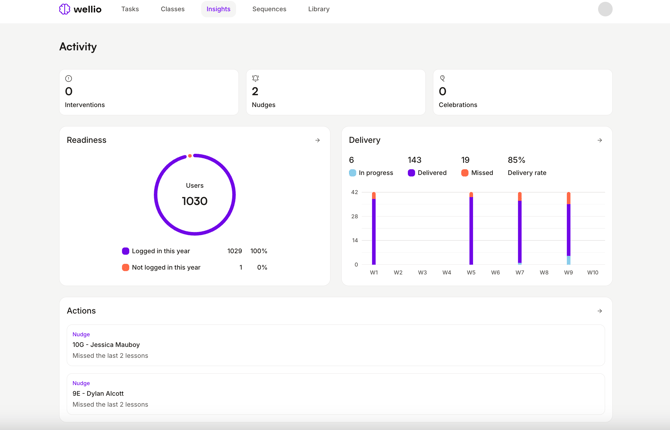
What you'll see on the Activity Dashboard
The Activity Dashboard is made up of four sections:
Action counts - At the top of the page, you'll see three numbers summarising actions that need your attention:
- Interventions - teachers or classes that may need support (e.g. a teacher hasn't logged in and their first lesson is coming up, or lessons have been missed repeatedly)
- Nudges - gentle reminders about things that are slightly off track (e.g. a teacher missed their last few lessons)
- Celebrations - positive highlights worth recognising (e.g. a teacher has delivered lessons consistently, or got back on track after missing some)
Click any of these to go to the full Actions page:

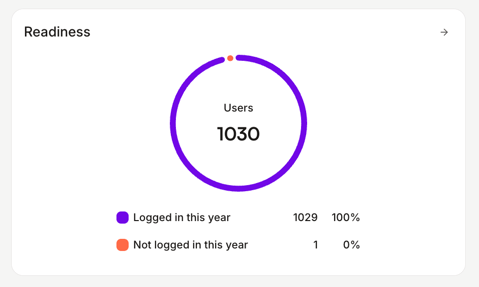
Readiness - A donut chart showing how many of your users have been invited and are set up to use Wellio. This helps you spot whether onboarding is complete or if there are still users who haven't been invited.
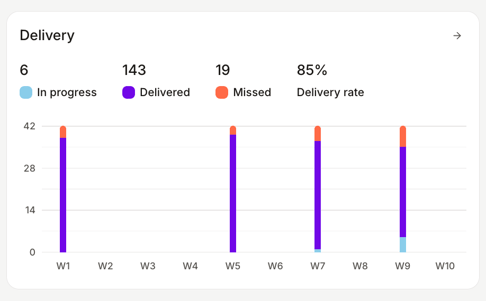
Delivery - A summary of how your scheduled lessons are tracking for the current term:
- In progress - lessons currently being delivered
- Delivered - lessons that have been completed
- Missed - lessons that were scheduled but not delivered
- Delivery rate - the percentage of scheduled lessons that have been delivered
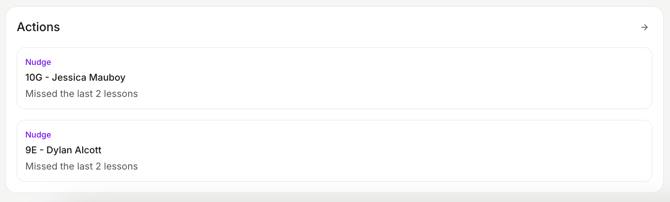
Actions - At the bottom of the page, you'll see up to three of the most recent action items. Each card shows:
- The action category (Nudge, Intervene, or Celebrate)
- The teacher's name
- A description of what triggered the action (e.g. "Missed the last 3 lessons" or "5 lessons delivered consistently this term")
How do I get to the Activity Dashboard?
Navigate to Insights → Activity from the top navigation bar. If you're a school admin, this may also be your default landing page when you log in.
Why can't I see the Activity Dashboard?
The Activity Dashboard is only available to staff with admin permissions. If you need access, ask a school admin at your school to give you admin permissions. Learn how in Managing teacher permissions in Wellio.