
The Lesson Library gives school admins access to Wellio's full catalogue of lessons. From here, you can browse lessons by topic and preview content before assigning it to your sequence.
🔒 Access to the Lesson Library is only available to admins. If you cannot see the Library tab, check with your school's Wellio co-ordinator to provide access.
Finding the Lesson Library
- Click the Library tab in the top navigation bar.
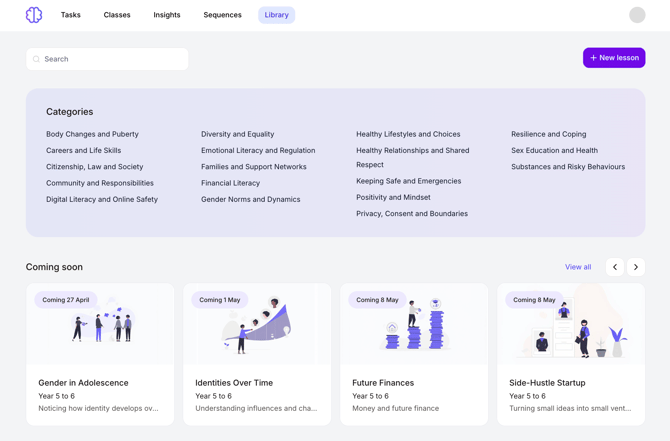
Browsing and searching for lessons
Once you're in the Library, you can explore lessons in a few different ways.
- Use the Search bar at the top of the Library to search for a lesson by name or keyword.
- Use the filter options on the left-hand side to narrow lessons by:
- Category - filter by subject area or wellbeing theme.
- Year Level - filter by the year groups the lesson is designed for.
- Collection - filter by groupings of lessons to discover more relevant lessons easier.

- Click on any lesson card to open a preview of that lesson.
Previewing a lesson
Before assigning a lesson to your class, you can preview the full lesson content — including slides, teacher notes, and student activities.
- From the Library, click on a lesson card to open it.
- Use the Preview slides on the page to view the lesson as it would appear to students:
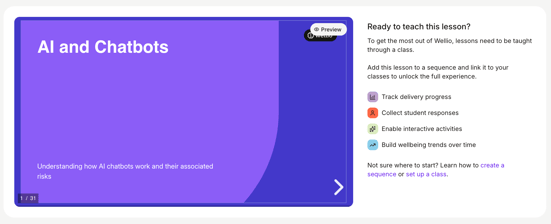
- Review the Prep Notes tab for teacher guidance, learning intentions, and facilitation tips.
⚠️ Note: Previewing a lesson does not assign it to your class. You'll need to follow the steps below to add it to your sequence.
Looking for worksheets or workbook?
Wellio's printable student resources are worksheets (for a single lesson) and workbooks (all the worksheets for a term in one PDF). They aren't stored as separate files in the Library. You print them straight from the lesson or sequence.
To print the worksheets for one lesson (teachers & admins):
- Open your class and click the lesson.
- Click the ⋮ menu next to Present.
- Click Print worksheets.
To download a whole term's workbook (admins-only)
-
Open the sequence from the Sequences tab
-
Click Download Workbook and choose the term.
Please note: If Print worksheets is greyed out, that lesson uses interactive activities that don't work on paper, so it has no worksheet.
Assigning a lesson to your sequence
Once you've found a lesson you'd like to teach, you can assign it to your sequence to be taught in class.
- In the top navigation bar, click Sequences
-
Click Lessons on the left-hand side to add lessons to your sequence

- Search in the Search content box, or click the filter icon to filter the lessons by category, year level, and author
-
Drag and drop as many lessons as needed across the term, into your sequence
For more guidance on managing your sequences, check out the How to Create or Add a Sequence guide.