
The data available to review will depend on both the mode of lesson delivery and the level of student engagement. This guide is divided into three sections to address the different methods of reviewing a lesson:
- Lessons delivered in full with active student participation in activities.
- Lessons not delivered in Device-Free Mode but the students haven't responded to questions in the platform.
- Lessons delivered in Device-Free Mode.
Lessons with Student Responses
If a lesson was delivered with students participating on their own devices, you can view individual and group responses.
- Go to Classes → Select your class → Click the delivered lesson
-gif.gif?width=524&height=289&name=2-ezgif-com-video-to-gif-converter%20(4)-gif.gif)
- Click the Review tab:
-gif.gif?width=526&height=85&name=9-ezgif-com-video-to-gif-converter%20(1)-gif.gif)
- Check the Progress table at the top of the tab. It lists each student with their:
- Progress – how much of the lesson they've completed
- Quiz accuracy – how many quiz questions they got right
- Response length – how detailed their written answers are
- Review the students responses to different questions and activities:
- View the classes responses to quiz questions:
Each question shows how many students chose each answer, and the percentage. The correct quiz answer is highlighted in green.-gif.gif?width=478&height=172&name=8-ezgif-com-video-to-gif-converter%20(1)-gif.gif)
- View the students responses to open answer questions:
Open questions show one student's answer at a time. Choose a student from the drop-down, or use the <> arrows to move between student responses.-gif.gif?width=475&height=74&name=2-ezgif-com-video-to-gif-converter%20(1)-gif.gif)
- View the classes responses to quiz questions:
⚠️ Students cannot resubmit or edit their answers once they’ve submitted them. Their original responses are saved and shown in the Review tab.
Lessons With No Student Participation
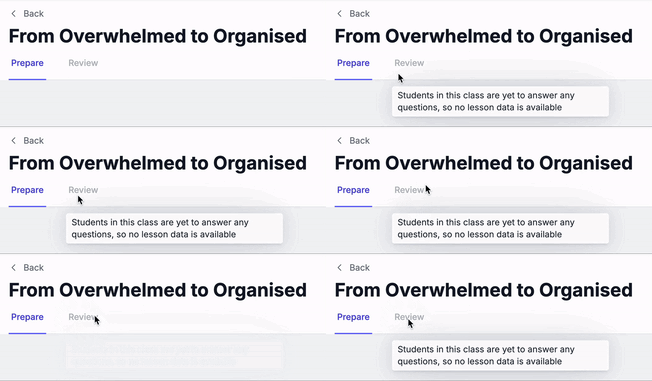
Example of "No lesson data available" in the "Review" tab of a lesson:
Device-free mode
When teachers present a lesson without students engaging through their own devices, the lesson progress will reflect the active time the teacher has spent within the lesson presentation.
The platform can not track each individual student's progress if you present the lesson in device-free mode. We encourage teachers to only use Device-Free Mode in the instance where most or all students do not have access to their own electronic device.
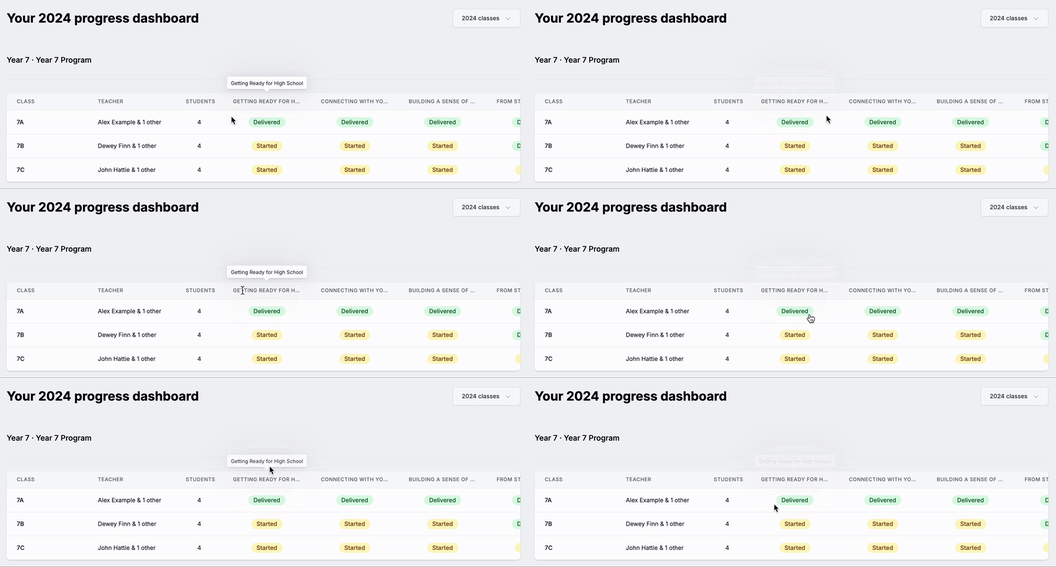
When reviewing completion for Device-Free lessons in the Progress Dashboard, a text bubble will pop up when you hover over the "Started" or "Delivered" icon for a lesson.
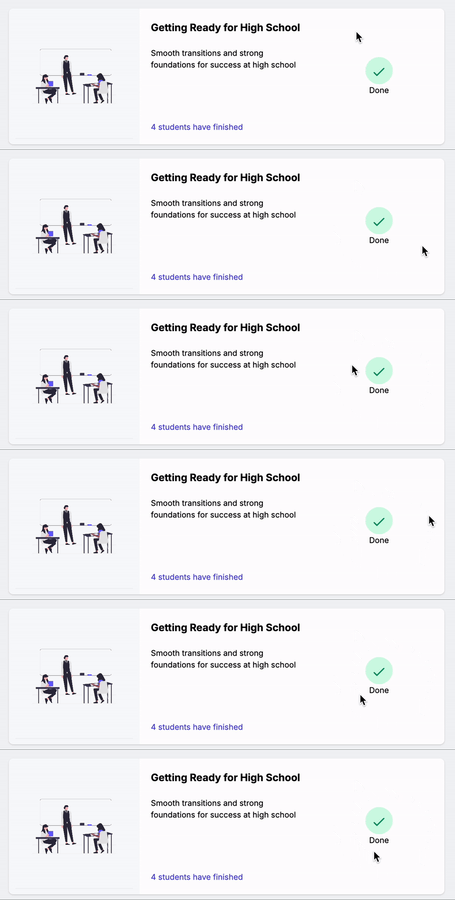
Once the lesson has been delivered, the lesson itself will be marked as "Delivered".
Quick Reference: What You Can Review
| Lesson Mode | Can I see student responses? |
|---|---|
| Students used devices + responses | ✅ Yes |
| Student used device + no responses | ❌ No |
| Device-Free mode | ❌ No |